Surviving the Unexpected with Azure Site Recovery

Chris Bower, Microsoft Azure Consultant at Synextra
Article by:
Chris Bower
Microsoft Azure Consultant
Azure Site Recovery - Deployment Demo

The lights flicker, servers go dark, and suddenly everything you rely on is offline. In a world where downtime can feel like the end of the world, being prepared isn’t optional, it’s critical. That’s where Azure Site Recovery comes in.

In this guide, we’ll walk you through deploying Azure Site Recovery for your VMs, step by step, so your workloads stay online no matter what hits. Our Consultant Chris walks through the full demo in the video below, or you can simply continue reading for all the details. Think of it as your digital survival kit, because your business shouldn’t have to fail when the unexpected strikes.
Azure Site Recovery scenario overview

In this scenario, we’re focusing on protecting an on-premises Windows server and replicating it to Azure. For the demo, we’ve set up a small environment with two Windows servers:

  • One server hosts the replication appliance.
  • The other is the server we want to protect, which can be either virtual or physical.

On the Azure side, we’ll use a Recovery Services vault to orchestrate replication, connectivity, and protection for the VM. By the end of this guide, our server will be replicating to Azure and ready for failover.

Even in a small demo like this, it pays to think big. Your replication setup should reflect what’s truly critical — the systems your business simply can’t afford to lose.

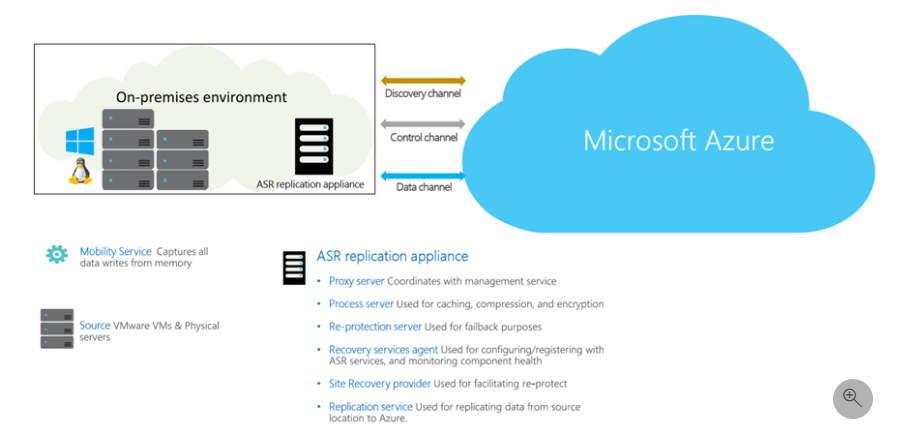
ASR replication diagram


Setting up your ASR environment

Before we dive in, here’s a quick overview of the architecture:

On-Premises Environment – The VMs or physical servers you want to protect. It could be Windows or Linux, running on VMware or Hyper-V.

Replication Appliance – The “brains” on-premises. It manages data transfer to Azure and handles communication with the Recovery Services vault.

Azure Recovery Services Vault – The cloud landing point for your replicated servers, managing VM protection, network connectivity, and storage orchestration.

On the Azure side, we’ve set up two virtual networks:

Production Virtual Network – Where the VM would come online during a real failover. Ideally, this mirrors your live environment as closely as possible.

Test Virtual Network – An isolated environment to safely run test failovers without touching live systems. Think of it as a fire drill for your servers — you can bring them up safely and make sure everything works before a real outage hits.

Creating a Recovery Services Vault

  1. Open the Azure portal.
  2. Navigate to Recovery Services Vaults and click Create.
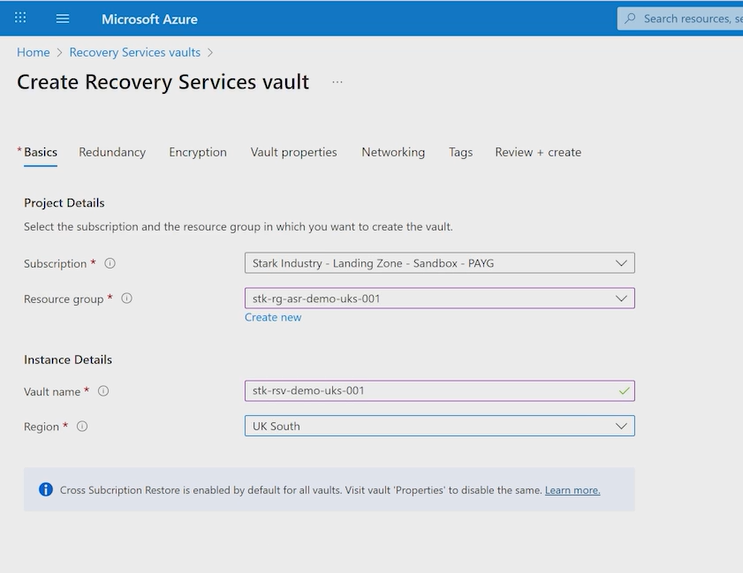
  3. Select your resource group, give the vault a name, and choose a region. For this demo, we’re using UK South.
  4. Redundancy and encryption settings will appear next, but those only apply to backups — not replication. Since we’re using Azure Site Recovery purely for replication, you can skip these options.
  5. Decide on network access. For simplicity, we’ll allow public access for this demo, but in production, review your organisation’s security and operational policies first. Most businesses prefer private endpoints or restricted access to meet internal security requirements.
  6. Optionally, add tags to help organise your resources — for example, by environment (Production, Test), owner (ITOps, DevTeam), or purpose (DR, Backup). Tags make it easier to manage costs, apply policies, and keep track of which resources belong to which workloads.
  7. Click Review + Create and wait for the vault to deploy.

Once complete, open the vault and navigate to Manage Site Recovery Infrastructure to prepare for replication. This is where the groundwork is laid for a smooth failover if disaster strikes.

Setting up the replication appliance

The replication appliance handles data movement from your on-premises server to Azure — it’s the traffic controller for your recovery environment.

You’ve got two ways to set it up:

  • OVA Template (VMware) – The quick-start option. You import a preconfigured virtual machine that already includes the appliance software and prerequisites. Perfect if you’re running VMware and want replication up and running fast without worrying about manual installs or dependencies.
  • Custom Windows Server – This approach gives you more control. You build your own Windows Server (physical or virtual), download the installer from Microsoft, and configure the appliance yourself. It’s useful if your environment has specific network, security, or OS requirements that don’t fit neatly into the OVA deployment.

For this demo, we’ll use the custom server approach:

  1. Download and extract the installer from Microsoft’s documentation.
  2. Run the PowerShell script as administrator — this is where the magic happens. It installs the required Windows roles, features, and prerequisite software: things like .NET components, IIS, and the Azure Site Recovery mobility service. In short, it’s getting your server ready to talk securely and efficiently with Azure.
  3. Reboot the server once installation completes — even if you’re not prompted. It’s best practice to ensure everything registers cleanly before moving on.
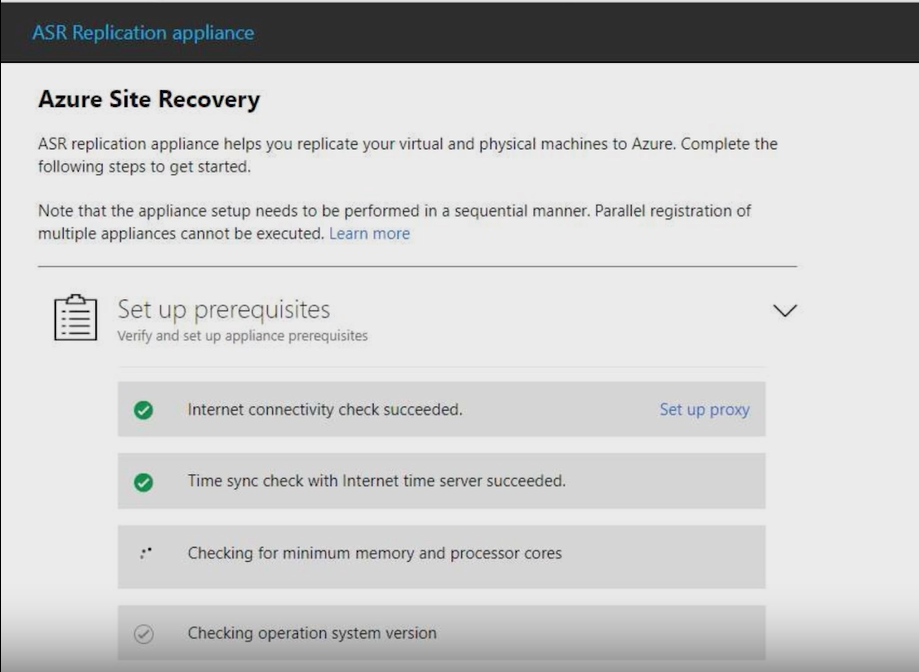
  4. Launch the appliance wizard and complete the prerequisite checks. It’s straightforward, with a simple guide that walks you through each step to confirm everything’s set up correctly.
  5. Choose FQDN or IP for appliance connectivity. This tells the appliance how to identify itself when communicating with Azure. The default option usually works fine, but in complex or multi-site networks, using a fully qualified domain name (FQDN) can help keep connectivity stable across DNS and firewall rules.
  6. Register the appliance with your Recovery Services vault. This links your on-premises server to Azure using the registration key from the portal. Once complete, Azure can orchestrate replication. It’s a critical step — without it, the appliance can’t discover servers or push data to the cloud.
  7. vCenter and mobility agent options. The wizard may prompt for vCenter details if you’re replicating VMware VMs. For this demo, we’re treating our server as a physical machine, so we skip that. If you have vCenter access, the appliance can connect through the hypervisor for easier management of multiple VMs. Alternatively, if you’re in a private cloud or don’t have hypervisor access, you can install the mobility agent directly on the VM and replicate it as if it were physical — no vCenter required.
  8. Save credentials. You can store a set of credentials for domain-joined servers, allowing the appliance to access multiple servers without re-entering details each time. It’s a small step that saves a lot of time during setup.
  9. Add server details and handle transient errors. Enter the IP address or FQDN of the server you want to protect and select the saved credential set. Once submitted, the appliance completes registration with Azure. Occasionally, you might see a transient error — just retry, and it usually completes successfully. The server will then appear in the Azure portal, ready for replication.

Once registered, the appliance is ready to discover servers for replication. The process is straightforward, but getting these steps right is crucial — even a small misconfiguration can cause big delays during a failover.

Note: As Chris points out in the demo, make sure the server you’re using for the replication appliance meets Microsoft’s recommended CPU, memory, and disk space requirements. The appliance processes and caches data locally before uploading it to Azure, so under-specced hardware can slow things down — especially if you’re protecting multiple servers. You can find Microsoft’s latest prerequisites here.

Azure Site Recovery Replication appliance

Configuring replication

With the replication appliance set up and connected to your Recovery Services vault, it’s time to configure which servers you want to protect and how Azure will handle them during a failover. This is where all that groundwork starts paying off.

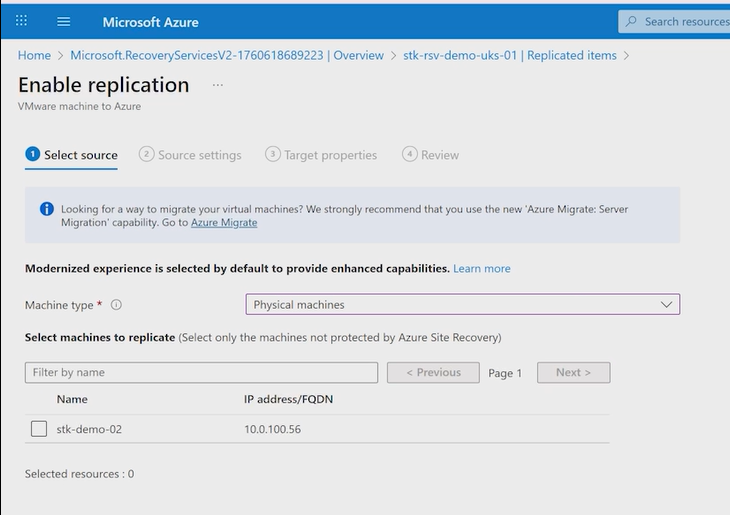
Enable replication - VMware machine to Azure

  1. In the vault, go to Replicated Items and click + Replicate. This kicks off the setup process for your first protected machine. The vault will guide you through the key configuration options in a series of straightforward steps.
  2. Select the type of servers you want to replicate — VMware or physical machines. In our demo, we’re treating the server as a physical machine, but if you’re working with VMware, you can choose that option and the vault will automatically use your registered appliance and vCenter connection (if configured).
  3. Choose the servers discovered by the replication appliance. Once the appliance is registered, it automatically discovers all available machines. Select the ones you want to protect. You can also apply credentials if you’re using domain-joined servers to ensure the vault can authenticate correctly.
  4. Configure target properties. This step defines where your replicated VM will live in Azure once it’s up and running. You’ll need to specify:
    • The resource group that will contain the replicated VM.
    • The failover virtual network, which can be your production or test network.
    • The subnet for the VM.
    • Note: Chris notes in the demo that this is a good time to double-check your naming conventions and network setup — it’ll save a lot of confusion later if you ever need to fail over for real.
  5. Optionally, configure a test failover network. This allows you to safely perform test failovers in an isolated environment. It’s best practice to do this before any real incident — you can validate that your replication and recovery process works without touching your live systems or production data.
  6. Configure replication settings. Here’s where you set the finer details of how replication behaves:
    • Retention period: The default is 24 hours, but you can extend this depending on your recovery objectives and how much replication history you want to keep.
    • App-consistent snapshots: Recommended for workloads like SQL Server or any transactional application. These snapshots ensure that when the system recovers, all data and applications start cleanly — not mid-transaction.
    • Note: Chris highlights that if you’re protecting multiple servers or data-heavy workloads, it’s worth considering how often you replicate and how long you retain recovery points. More frequent replication means smaller data loss windows but can increase network and storage usage, so it’s about finding the right balance for your business.

Once these options are set, you can enable replication. The appliance will push-install the mobility agent on the protected server (if it isn’t already there) and begin the initial replication to Azure. Depending on the size of your server, this first sync can take a while — but you can monitor progress and status directly from the portal.

Errors or warnings will be flagged clearly, so you can troubleshoot quickly if anything looks off. Once complete, your machine is officially protected — ready for test failover or the real thing if disaster strikes.

Disaster recovery done right

Disaster recovery isn’t a checkbox; it’s the difference between a minor hiccup and a full-blown outage. Azure Site Recovery gives you the tools to replicate your critical servers to the cloud, orchestrate failovers, and keep your business running no matter what happens on-premises.

But technology alone isn’t enough. A robust disaster recovery strategy combines planning, processes, and expertise to ensure workloads stay online when the unexpected hits. Think about your most critical systems and ask: how quickly can they recover? Who triggers failover? Where are your backups, and are they tested?

With the right setup, you can sleep easier knowing your systems are protected, failovers are rehearsed, and business continuity isn’t just a plan on paper — it’s reality.

Don’t wait for disaster

Disasters happen, but downtime doesn’t have to.

At Synextra, we help businesses build resilient disaster recovery strategies, deploy Azure Site Recovery, and ensure critical systems stay online no matter what hits. Whether you need help designing a strategy, setting up your environment, or testing failovers, we’ve got you covered.

Talk to our team and make sure your systems survive whatever the world throws at them.

Subscribe to our newsletter

Stay ahead of the curve with the latest trends, tips, and insights in cloud computing

thank you for contacting us image
Thanks, we'll be in touch.
Go back
By sending this message you agree to our terms and conditions.