Azure SQL Database Migration: Everything you Need to Know

Article by:
Synextra
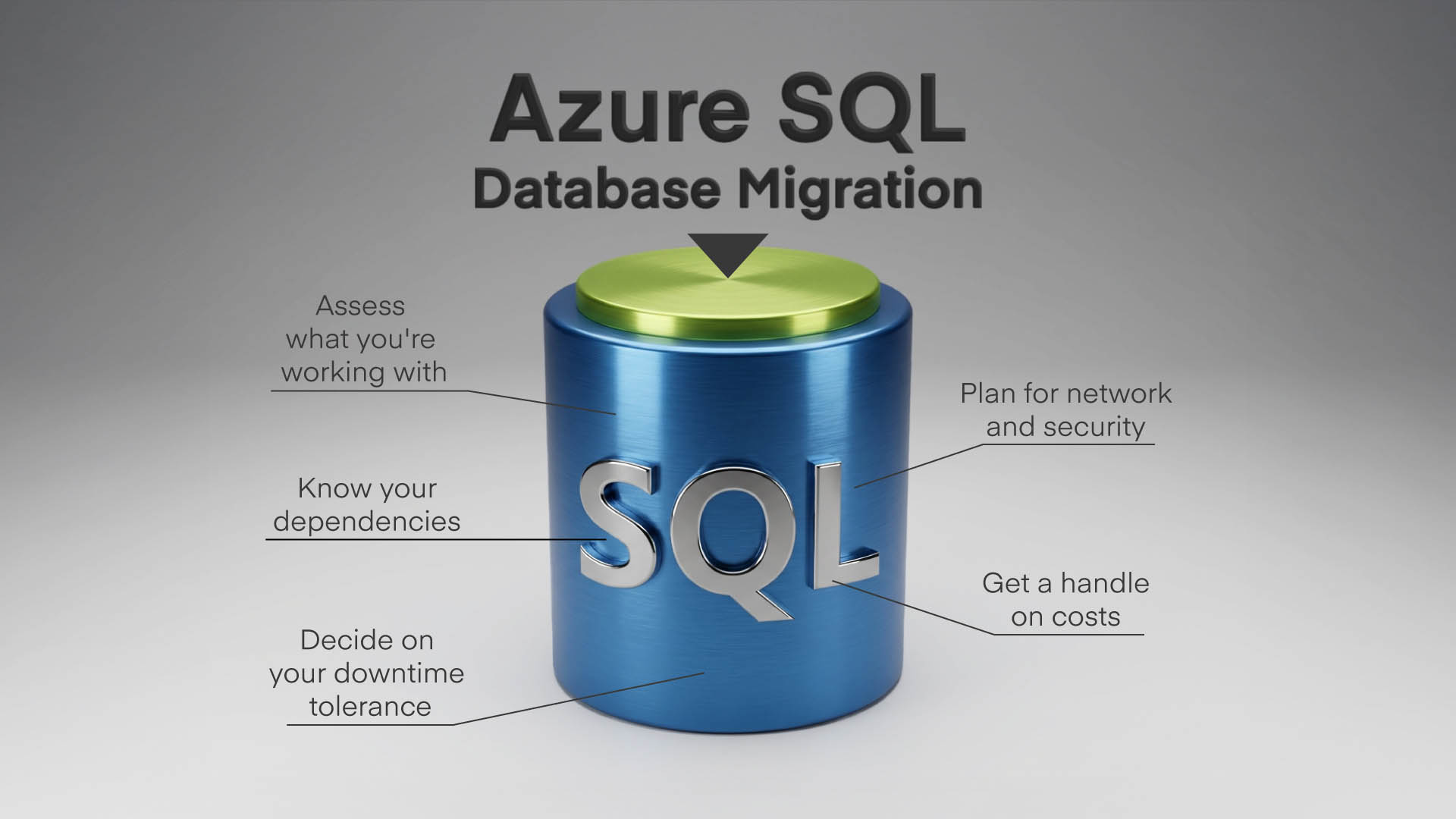
graphic showing Azure SQL database migration

Azure SQL gives you the SQL Server compatibility your applications depend on, without the infrastructure overhead.

Your databases become more resilient, easier to scale, and a lot less demanding on your internal resources. The catch is that you need to get them there first.

Database migration is one of those projects that looks straightforward on paper but has a habit of getting complicated in practice. Schema compatibility, application dependencies, downtime windows, security configurations – there’s a lot to think about before you start moving data.

This guide walks through the key decisions you’ll need to make, the tools available to help, and the common pitfalls worth avoiding. Whether you’re moving from on-premises infrastructure or shifting databases between Azure tenants, we’ll guide you to a smooth transition with no surprises.

Your Azure SQL options 

Before planning any migration, it’s worth getting clear on what you’re actually migrating to. Azure SQL isn’t a single product – it’s a family of services, each suited to different scenarios.

Azure SQL Database is the fully managed option. Microsoft handles patching, backups, and high availability, leaving you to focus on the data itself. It’s ideal for modern applications and works particularly well when you’re building new solutions or modernising existing ones. You can deploy single databases or use elastic pools to share resources across multiple databases – handy for SaaS applications or environments with variable workloads. If you’re weighing up the benefits of managed services over traditional infrastructure, this is the option that leans furthest into the PaaS model.

Azure SQL Managed Instance sits between fully managed and fully manual. It offers near-complete compatibility with on-premises SQL Server, including features like SQL Agent jobs, cross-database queries, linked servers, and CLR integration. For organisations with complex existing estates, Managed Instance is often the smoother migration path. So if you’ve got lots of legacy stored procedures, tightly coupled databases, or features that Azure SQL Database doesn’t support, it’s a good choice.

You’re still offloading infrastructure management, but you keep the SQL Server behaviours your applications expect.

SQL Server on Azure VMs is the IaaS option. Great if you have very specific configuration requirements.

You get a virtual machine running SQL Server, which you manage much like you would on-premises, just without the physical hardware. This makes sense when you need complete control, or are running workloads that genuinely can’t work any other way. It’s the most flexible option but also the most hands-on.

Choosing between these shapes your ongoing operational model. Generally speaking, the more managed the service, the less you’re spending on operational overhead, and the more you benefit from built-in resilience. But that only works if the service supports what your applications actually need.

Planning your SQL migration properly 

Don’t jump straight to the technical steps. The planning phase is where you avoid the problems that derail projects later. Here’s how to do it properly.

1. Assess what data you’re working with

Start by getting a clear picture of your current SQL estate. How many databases? How large? What features are they using? Azure Migrate can scan your existing servers and flag compatibility issues before you commit to a target platform.

If your SQL Servers are connected via Azure Arc, you also get continuous migration assessments that update automatically – useful for keeping on top of readiness as your environment changes.

It’s common to discover databases using features that don’t translate directly to Azure SQL Database. And it’s far better to find that out now than halfway through migration.

2. Know your dependencies

Databases rarely exist in isolation. Applications connect to them, jobs run against them, reports pull from them, and other databases might link to them. Map these dependencies before you move anything. You’ll need to know which connection strings need updating, which applications need testing, and whether any integrations will break when the database moves to a new location.

3. Decide on your migration downtime tolerance

Migrations broadly fall into two categories: offline and online. Offline migrations are simpler – you stop applications, move the database, and start everything back up pointing at the new location.

The downside is obvious: your systems are unavailable while it happens. Online migrations keep the source database running while synchronising changes to Azure, only cutting over when you’re ready. They’re more complex to set up but essential for systems that can’t afford extended outages.

4. Plan for network and security

Your applications need a way to reach databases in Azure, and that connection needs to be secure. This might mean configuring VPN gateways, setting up ExpressRoute for dedicated connectivity. Or it could be carefully managing firewall rules.

Azure SQL databases aren’t exposed to the public internet by default, which is good for security but does take some network planning. It’s worth reviewing your broader security approach as part of this process.

5. Get a handle on costs

Azure SQL pricing depends on the service tier, compute size, and storage you choose.

It’s easy to over-provision initially. It’s equally easy to accidentally pick a tier that doesn’t deliver the performance you need. Microsoft’s pricing calculator helps with estimates, but there’s no substitute for understanding your actual workload patterns. Once you’re running in Azure, tools like Azure Cost Management help you track spending and right-size resources over time.

If you’re tackling a broader infrastructure shift alongside database migration, our on-premise to cloud migration guide covers the wider planning considerations.

How to migrate on-premises SQL databases to Azure 

With your planning complete, the actual migration comes down to choosing the right method for your situation. There are several approaches, each with different trade-offs.

Azure Database Migration Service (DMS) is Microsoft’s primary tool for moving SQL Server databases to Azure. It supports both offline and online migrations, and orchestrates schema and data migration. It can keep your source and target synchronised until you’re ready to cut over.

For online migrations (where you need minimal downtime) DMS continuously replicates changes from your on-premises database to Azure. This lets your applications keep running until the final switchover. It’s useful for bigger databases where a simple backup-and-restore would mean hours of downtime.

Backup and restore is the most straightforward approach. You take a backup of your on-prem database, copy it to Azure Blob Storage, and restore it to your target Managed Instance or SQL Server on Azure VM.

For smaller databases or situations where you can afford a maintenance window, this works well. The process is familiar to anyone who’s managed SQL Server, and there’s less that can go wrong compared to more complex methods. The limitation is downtime, though. Your database is effectively frozen from the moment you take the backup until the restore completes and applications reconnect.

BACPAC files offer another option, useful when you want to export both schema and data as a portable package. They’re basically ZIP files that contain the data from the database, and its metadata. You can create a BACPAC from your source database and import it into Azure SQL Database or Managed Instance. This works well for smaller databases and development or test environments. For production workloads with large datasets, it can be slower than alternatives.

Transactional replication lets you replicate data from an on-premises SQL Server to Azure SQL Database on an ongoing basis. (That’s assuming your SQL Server version and configuration meet the replication prerequisites.)

This is useful when you need to run both environments in parallel for an extended period – could be for testing or a phased migration. It’s more complex to configure than other methods but gives you flexibility when you can’t commit to a hard cutover date.

Migrating to Azure SQL Managed Instance 

If you’re moving databases that rely heavily on traditional SQL Server features, Managed Instance is often the easiest way. It supports capabilities that Azure SQL Database doesn’t, so it’s a natural fit for complex on-prem estates.

The major advantage here is compatibility. Managed Instance handles SQL Agent jobs natively, so scheduled tasks and maintenance routines don’t need rewriting. Cross-database queries work as expected, which matters if your applications join data across multiple databases. Linked servers, CLR assemblies, and Service Broker are all supported. For firms with years of accumulated SQL Server logic, this compatibility can save enormous amounts of rework.

Migration to Managed Instance typically uses the same tools as other Azure SQL migrations. Azure DMS supports Managed Instance as a target and handles online migrations with minimal downtime. For simpler scenarios, backup and restore works too – you can restore native SQL Server backups directly to Managed Instance from Azure Blob Storage.

The main consideration is that Managed Instance runs inside a virtual network, so you’ll need to plan network connectivity carefully. Apps connecting from on-premises need a path to that VNet, whether it’s through VPN, ExpressRoute, or other networking arrangements. This adds some complexity but also gives you more control over how traffic flows.

Moving databases between Azure tenants 

What if your migration isn’t starting from on-prem?

Sometimes you need to move databases between Azure subscriptions or tenants. This could be following a company restructure or merger, or when handing systems over to a different organisation.

The mechanics differ from on-premises migration because you’re working entirely within Azure, but the principles are similar. You’re still moving data from one place to another, and you still need to handle everything that doesn’t travel with it automatically.

The standard approach is export and import using BACPAC files. You export the database from the source subscription, store the BACPAC in Azure Blob Storage, and import it into the target subscription. This works well for most scenarios and doesn’t require any special tools beyond what’s built into the Azure Portal or command-line utilities.

For bigger databases or situations where you need ongoing synchronisation between tenants, Azure Data Factory gives you more capable options. You can set up pipelines that copy data between Azure SQL instances, transform it along the way if needed, and schedule regular syncs until you’re ready for a clean cutover.

One thing that consistently catches people out: database-level users and logins don’t migrate automatically. In Azure SQL, logins exist at the server level, while users exist at the database level. When you export a database, you get the users but not the logins they’re mapped to.

You’ll need to recreate logins in the target environment and remap users appropriately. The same applies to any Entra ID authentication you’ve configured: permissions don’t just follow the database to a new tenant.

Database migration challenges and things to watch out for 

Database migrations have a way of surfacing problems you didn’t know existed. A few areas deserve a bit more attention.

Feature compatibility is the most common stumbling block when moving to Azure SQL Database. Some SQL Server features just aren’t available in the PaaS offering – like SQL Agent for example.

Assessment tools like Azure Migrate flag these during discovery, but it’s worth reviewing the list of differences between SQL Server and Azure SQL Database before committing to a target. Managed Instance supports more features, so if compatibility is a significant concern, it might be the better choice.

Authentication changes often need attention. On-premises environments normally use Windows Authentication with Active Directory. Azure SQL supports Entra ID authentication, but the configuration is different. Applications using integrated authentication might need updates to use Azure AD tokens instead. SQL authentication still works, but you’ll need to recreate logins and ensure passwords meet Azure’s requirements.

Connection strings need updating everywhere a database is referenced. This sounds obvious, but in practice there are always more places than expected. Think application config files, connection pools, reporting tools, scheduled jobs, and integration services. Missing even one can cause unexpected failures after migration.

Performance might behave differently. Azure SQL databases run on different hardware with different IO characteristics than your on-prem servers. Queries that performed well before might need a tune-up. The query store and performance recommendations built into Azure SQL help identify issues, but expect some optimisation work after migration, especially for performance-sensitive applications.

Compliance and data residency matter more than ever when data moves to the cloud. Azure lets you choose which region hosts your databases, but you need to make those choices deliberately. If your org has specific regulatory requirements, make sure your target Azure region aligns with them. That could involve GDPR, industry-specific regulations, or even internal policies. (Our compliance guide will guide you through the broader issues.)

Getting your database migration right first time 

A successful database migration is all in the preparation. The companies that go through smooth migrations are the ones that plan carefully and test extensively before touching production data.

You’ll want to start with a proper assessment. Really understand what you’re working with, what features your applications depend on, and which target service makes sense for your situation. Don’t skip this step just because you’re confident you know your environment. The assessment tools we covered earlier exist because even experienced database administrators discover surprises.

Test in a non-production environment first. Migrate a copy of your database, point test applications at it, and validate that everything works as expected. This is where you’ll find the connection strings you missed, the features that don’t translate, and the performance issues that need attention. Better to find them here than during a production cutover.

Have a rollback plan, too. Even with thorough testing, things can go wrong. Know how you’ll revert to the original environment if the migration doesn’t go as expected. For online migrations using DMS, this might mean keeping replication running in reverse. For offline migrations, it might mean having recent backups ready to restore to the original servers.

Database migration is one of those projects that benefits massively from experience. If you’re planning to migrate your infrastructure to Azure and want to make sure your SQL databases land safely, we’d be happy to talk through your situation. Get in touch and we’ll take it from there.

Subscribe to our newsletter

Stay ahead of the curve with the latest trends, tips, and insights in cloud computing

thank you for contacting us image
Thanks, we'll be in touch.
Go back
By sending this message you agree to our terms and conditions.