Whether you’re heading to Azure Local or Azure IaaS, the migration process follows a similar structure. Here’s a practical walkthrough of the key stages.
1. Assess your environment
This is where most migrations either succeed or stumble. Before you move anything, you need a clear picture of what you’re working with.
Start by inventorying your VMware VMs, their configurations, resource usage, and dependencies. Azure Migrate is the go-to tool here. It connects to your vCenter Server, discovers your VMs, and collects performance data over time.
Running it for at least a couple of weeks gives you realistic utilisation figures rather than just what’s been allocated (and it’s common to find that VMware environments are significantly over-provisioned).
The key things you want to capture during assessment are:
- VM inventory: OS versions, disk sizes, CPU and memory allocation
- Actual resource utilisation (not just allocated resources)
- Application dependencies and communication patterns
- Network configuration: VLANs, firewall rules, static IPs
- Any VMware-specific features in use (DRS, vSAN policies, NSX micro-segmentation)
- Licensing: Windows Server, SQL Server, and any third-party software
The assessment output will tell you which VMs are ready to migrate as-is, which need adjustments, and what the estimated Azure costs will look like.
2. Plan your target architecture
With your assessment data in hand, you can design your landing zone. This looks different depending on your destination.
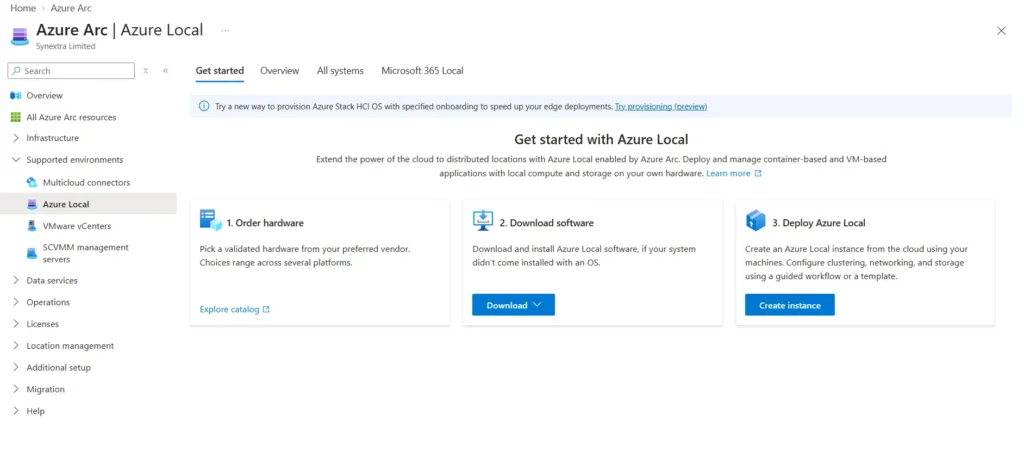
For Azure Local: you’ll need to size your cluster hardware (nodes, storage, networking), plan your Azure Arc connectivity, and design your logical networks and storage paths. Microsoft maintains a catalogue of validated hardware from vendors like Dell, Lenovo, and HPE.
For Azure IaaS: you’ll be choosing VM sizes, storage tiers (managed disks, premium vs standard SSD), virtual networks, and resource groups. Azure Migrate’s assessment tools can recommend VM sizes based on your actual performance data. This helps avoid the classic mistake of simply matching your on-prem specs one-for-one and ending up with an inflated Azure bill.
In both cases, think about networking early. How will your migrated VMs communicate with the rest of your estate during and after migration? Do you need ExpressRoute or VPN connectivity? What about DNS and Active Directory?
3. Prepare your target environment
For Azure Local: deploy and configure your Azure Local cluster and register it with Azure Arc. Then set up the Azure Migrate target appliance on the cluster. You’ll also need to configure logical networks and storage paths for the incoming VMs.
For Azure IaaS: set up your Azure subscription, virtual networks, storage accounts, and any required connectivity (VPN gateway or ExpressRoute). Create your Azure Migrate project in the portal if you haven’t already.
This is also the time to think about governance: resource naming conventions, tagging strategy, role-based access control (RBAC), and Azure Policy. Getting this right before migration saves a lot of tidying up afterwards.
4. Migrate your VMs
This is where the actual migration happens, and you have a few options depending on your tooling (covered in detail in the next section).
The general flow using Azure Migrate looks like this:
- Enable replication for your VMs. Azure Migrate begins copying disk data from your VMware environment to the target (Azure Local or Azure managed disks). Your production VMs continue running during this phase.
- Run test migrations in an isolated network. This lets you verify that VMs boot correctly, applications work, and network connectivity is as expected, all without affecting production.
- Perform the cutover. Once you’re confident, you trigger the final migration. There’s a brief period of downtime while the last changes sync and the VM switches over to the new platform.
It’s best practice to migrate in waves rather than all at once. Group VMs by application and dependency, and start with low-risk workloads (dev and test environments are ideal). Build confidence before tackling production.
5. Validate and optimise
After each migration wave, take the time to validate thoroughly:
- Confirm your VMs are running and accessible
- Test application functionality end-to-end
- Check network connectivity and DNS resolution
- Verify backup and monitoring are in place
- Review performance against your baseline data
Once you’re satisfied, decommission the source VMware VMs and clean up any temporary migration infrastructure.
This is also a good time to right-size your Azure resources based on actual post-migration performance. Many organisations find they can reduce VM sizes further once workloads are running in Azure, which directly reduces costs.
For ongoing management and cost control, our guide to Azure cost management covers the tools and strategies that make a real difference.