Now let’s get practical. Azure provides a really strong cost optimisation toolkit for implementing FinOps, and knowing which tools to use (and when) is half the battle. Here’s your arsenal:
Azure Cost Management + Billing: Your financial command centre
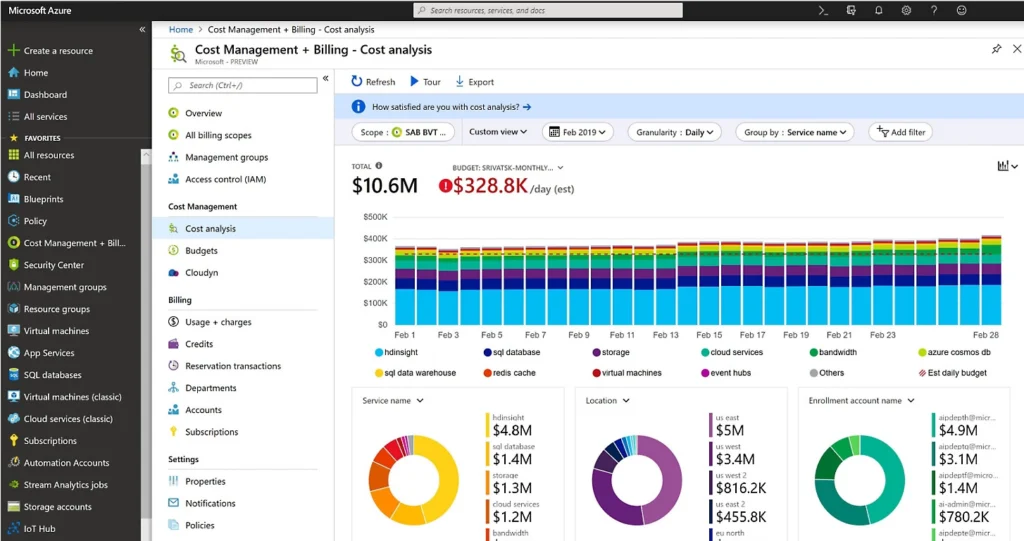
This is FinOps ground zero. Azure Cost Management gives you detailed breakdowns of spending across subscriptions, resource groups, and individual resources. You can slice and dice data by department, project, service or any dimension that matters to your business – providing you’ve got a consistent tagging strategy in place.
The real power comes from its analysis capabilities. You can track spending trends, forecast future costs, and identify anomalies before they become problems. Set up custom views for different stakeholders – executives get high-level dashboards while engineers drill into resource-level details.
Azure Advisor: Automated recommendations engine
Azure Advisor is a sort of personal FinOps consultant that never sleeps. It continuously analyses your Azure usage and provides personalised recommendations for cost optimisation. Found oversized VMs? Advisor flags them. Paying for premium storage where standard would suffice? It’ll let you know.
Advisor doesn’t only identify problems; it quantifies the potential savings and gives you step-by-step remediation guidance.
Azure FinOps Workbook: Pre-built dashboards and insights
Azure FinOps workbooks are like having a pre-configured analytics platform designed specifically for cloud financial management. It gives you visualisations and insights that’d otherwise take weeks to build from scratch.
These workbooks help you track key FinOps metrics: cost per customer, unit economics, budget variance, and utilisation rates. They’re customisable too – adapt them to your specific KPIs and share them across teams for consistent reporting.
Azure Monitor: Connecting performance to cost
Azure Monitor bridges the gap between technical performance and financial impact. When you use it to correlate performance metrics with cost data, you can make informed decisions about scaling and optimisation.
For instance, if a service is running at 10% CPU utilisation but costing hundreds per month, Monitor helps you spot this inefficiency. It highlights not just what resources cost, but whether or not they’re delivering value.
Power BI integration: Custom reporting for stakeholders
Power BI lets you create custom FinOps dashboards that speak to your specific stakeholders. So for example you can build executive scorecards, departmental chargeback reports, or detailed engineering analytics.
The native integration between Azure Cost Management and Power BI means you’re working with live data, not last week’s export. You can create interactive reports that let users explore costs themselves rather than queuing up requests to IT.
Azure Resource Tags: The foundation of cost allocation
Tags might seem a bit boring, but they’re the foundation of effective FinOps. Proper tagging strategy lets you allocate costs accurately, track spending by project or department, and enforce those all-important governance policies.
Azure supports up to 50 tags per resource, and with Azure Policy, you can enforce tagging standards automatically. No more untagged resources sneaking through and muddying your cost allocation. For more on governance and policy enforcement, check out our guide to mastering cloud compliance with Azure Policy.